
We all have to reset our MFA from time to time. Phones get lost or stolen, or simply replaced. And sometimes we don’t have a good way to transfer our MFA between devices. In my case, I enforce MFA on our Veeam Service Provider Console, but due to my phone being replaced, I was unable to transfer my MFA to my new device. In a lot of cases, there is a clear way to reset your MFA, either with another admin account, or via a recovery code, etc. The Veeam Service Provider Console does have a method for resetting MFA for local accounts, but when it comes to AD integrated accounts, there’s no clear solution. At one point in time I was told that the MFA would need to be reset via the API. A programmer I am not. I can work through a lot of things, but figuring out how to log into the API with MFA was stumping me. Of course, there has to be a way to reset manually in the SPC SQL database, correct? After struggling for a couple of years, I had another user that needed to be reset, so I finally opened a case with Veeam support and got my answer.
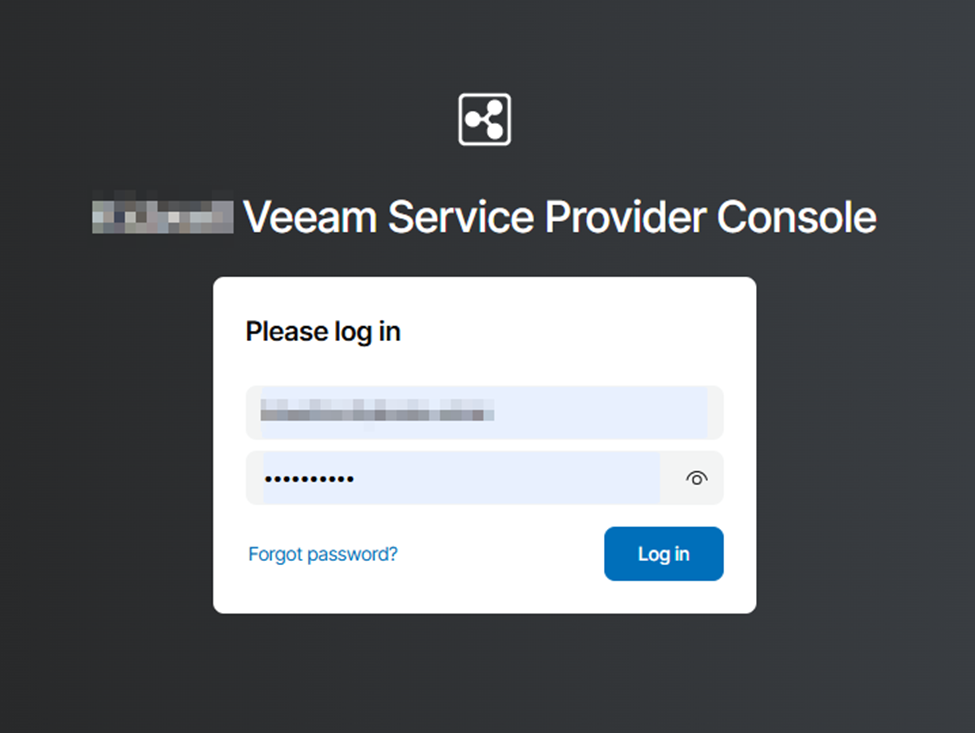
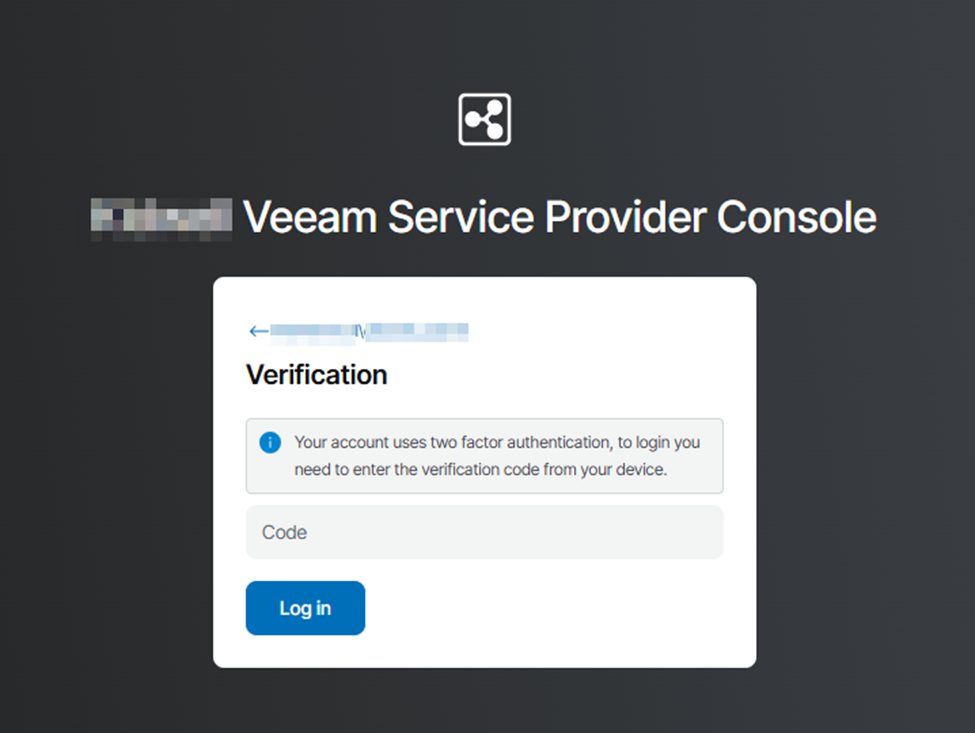
Indeed, there is a way to reset the user account. In fact, there is a SQL Stored Procedure to delete the login and remove the MFA secret from the database allowing you to login and re-enroll in MFA. As usual, this involves resetting editing the SQL database, and while it does use a procedure that takes away some of the risk, I will still note that editing the SQL database directly is not advisable without support’s guidance, but in the event that you are willing to take the risk and take the proper precautions, below is the process I found to work with support’s guidance.
FIRST THING! Backup your SPC database. This really should go without saying, but I’m one to skirt the edge of safety sometimes, so it’s great to have that reminder that you are editing a live database and having a backup you can fall back to is great. Sometimes you can simply backup your SQL server, but Veeam has an article for this process, and it simply involves taking a full SQL database backup via SQL Server Management Studio. Either way, make sure you can restore in case things go awry and you need to fallback to your backup.
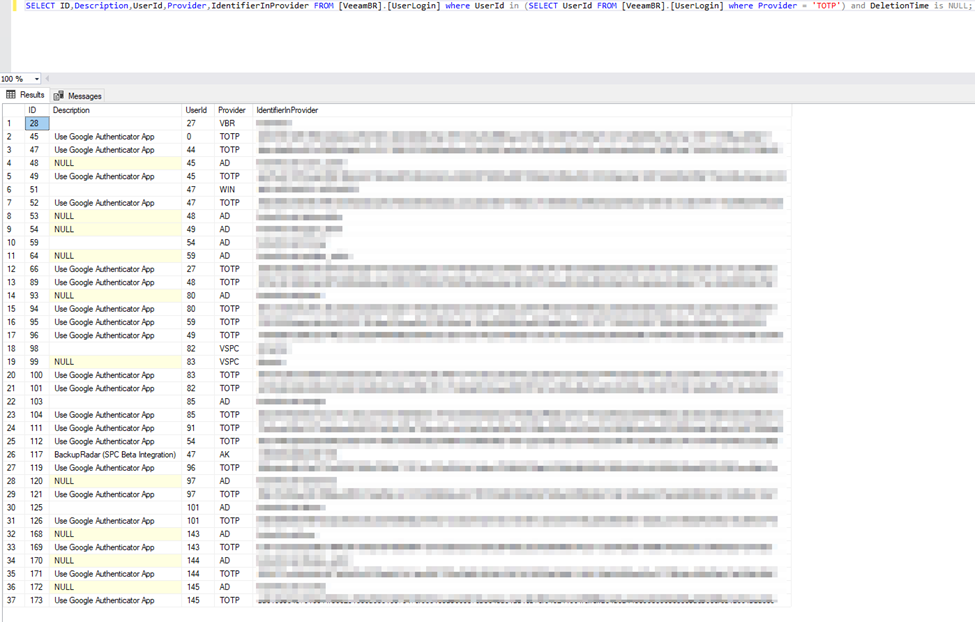
Now the fun part….once your database is backed up, fire up a query in SSMS to find your active users with TOTP MFA enabled.
SELECT ID,Description,UserId,Provider,IdentifierInProvider FROM [VeeamBR].[UserLogin] where UserId in (SELECT UserId FROM [VeeamBR].[UserLogin] where Provider = 'TOTP') and DeletionTime is NULL;
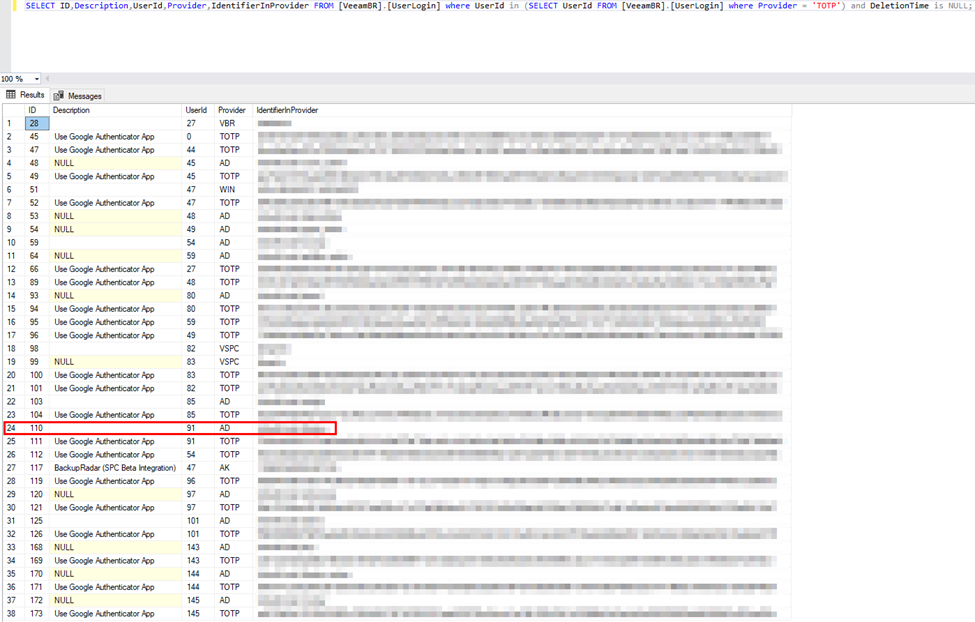
Next step, you’ll want to identify the user in the IdentifierInProvider column and note the value of the UserId column as well as the Provider (in this case, it’s ‘AD’ because this is an AD-integrated account. And then were back with a SQL query to execute the stored procedure with the information we’ve gathered. Repeat for any additional logins you need to remove.
EXEC [VeeamBR].[RemoveUserLogin] 'UserId','Provider','IdentityInProvider'
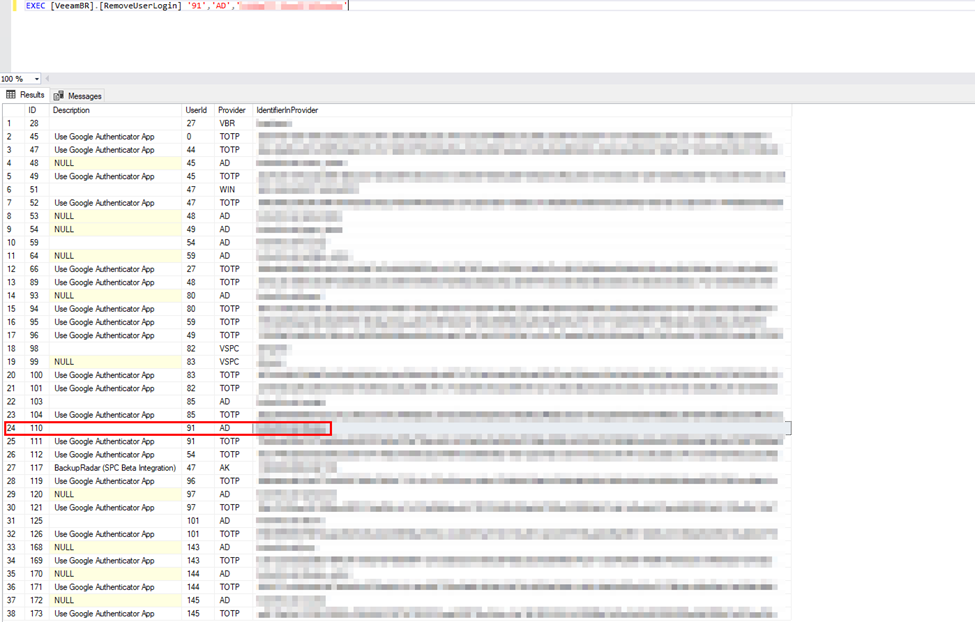

Now I’m going to run the query again to ensure that the login (or logins) has been cleared/marked deleted in the UserLogin table.
SELECT ID,Description,UserId,Provider,IdentifierInProvider FROM [VeeamBR].[UserLogin] where UserId in (SELECT UserId FROM [VeeamBR].[UserLogin] where Provider = 'TOTP') and DeletionTime is NULL;
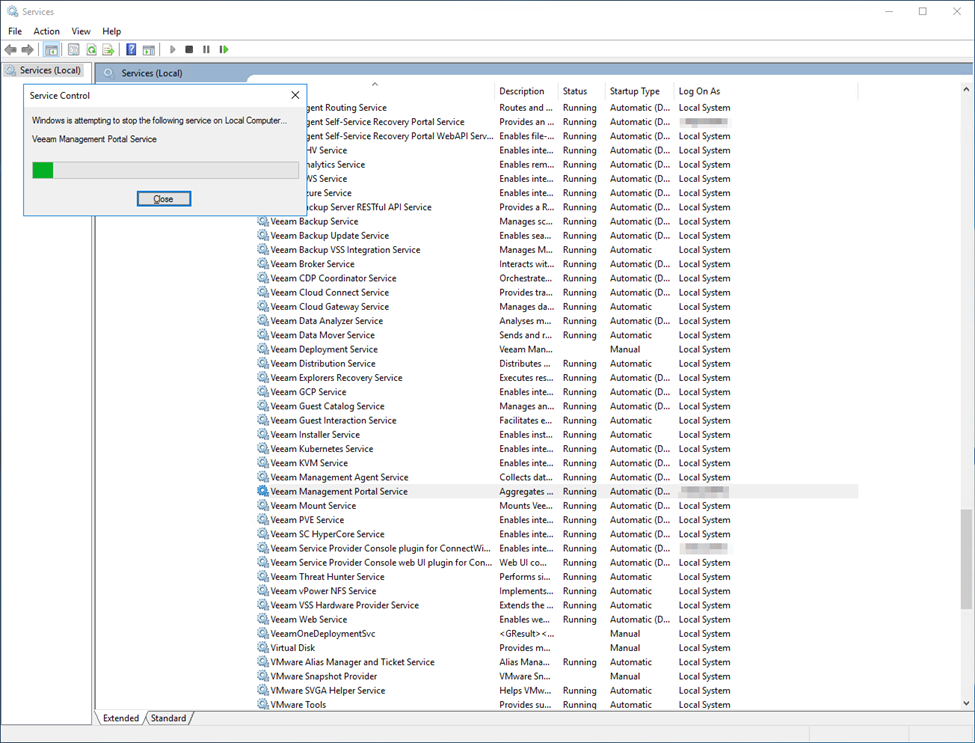
Next up, mosey on over your SPC and restart the “Veeam Management Portal Service” service force it to reload the database.
After the service has been restarted, refresh your login page and login with your AD credentials. Once you do so, you should be prompted to enroll in MFA. Select “Generate QR Code” to display a code and generate a secret key, and scan with your MFA app of choice.
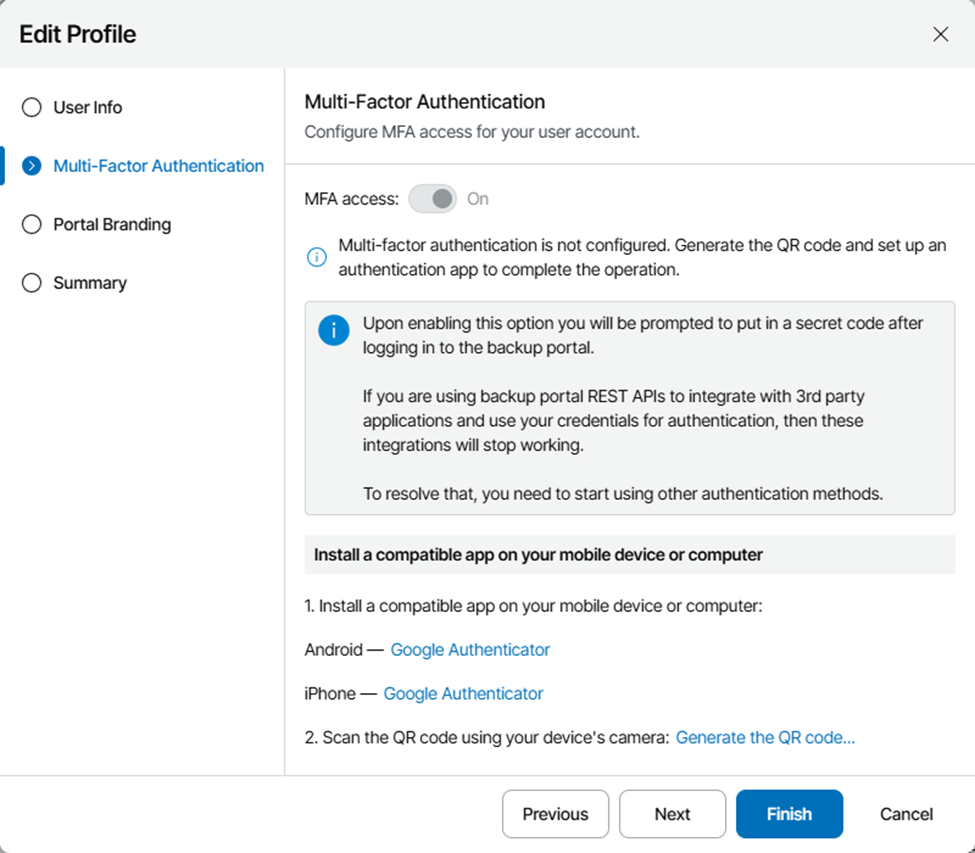
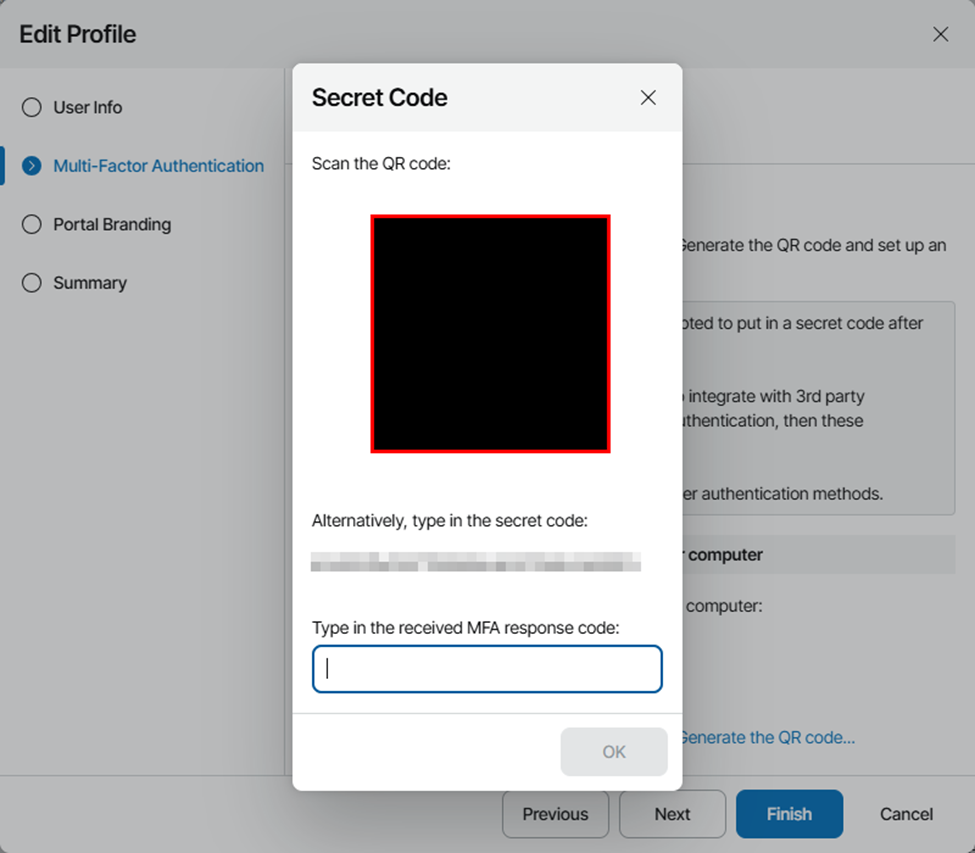
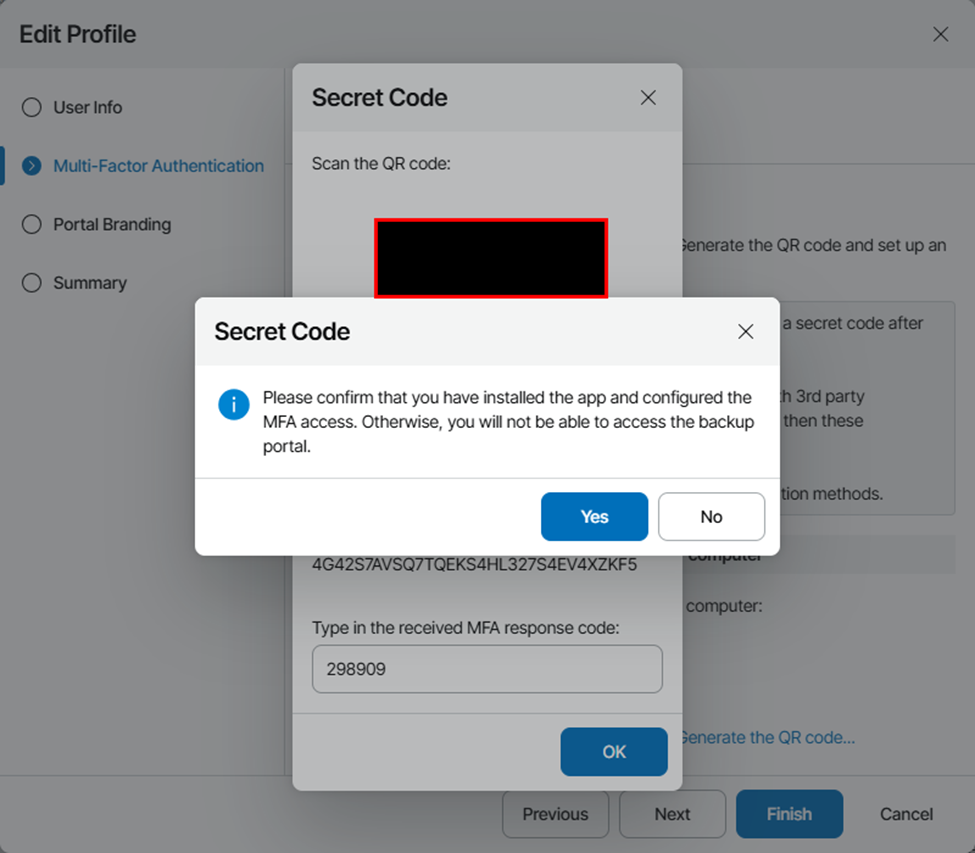
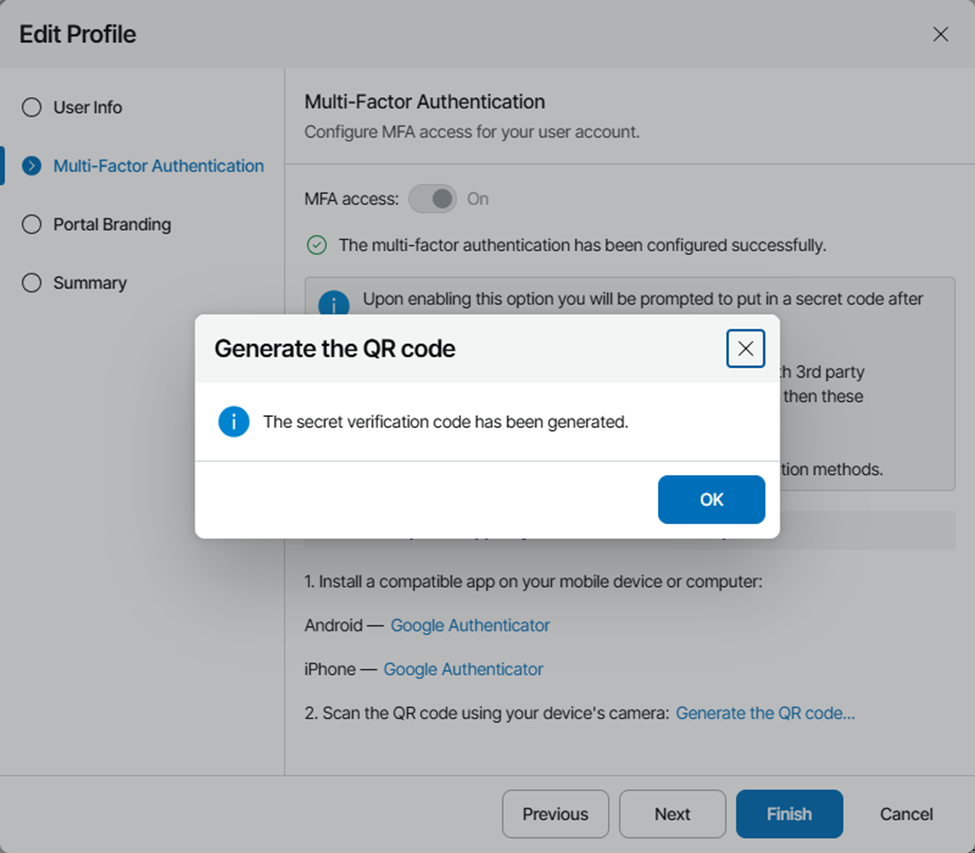
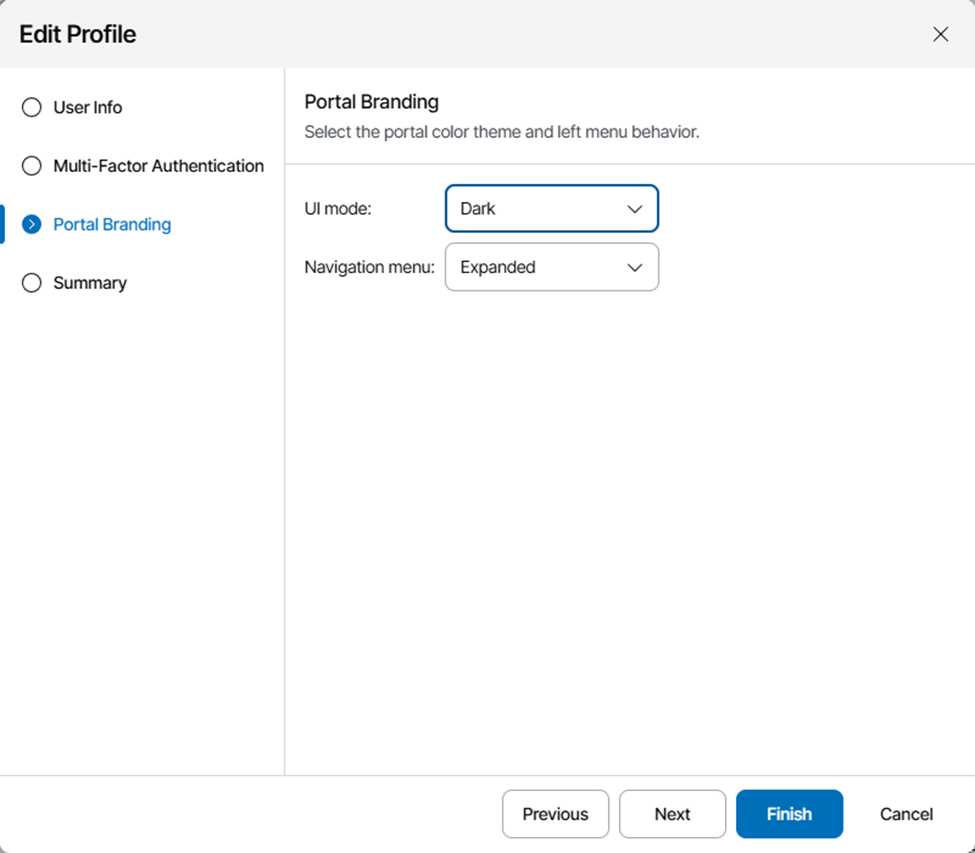
Once you’ve completed the MFA enrollment, walk through the wizard to configure any other profile settings you desire and click finish.
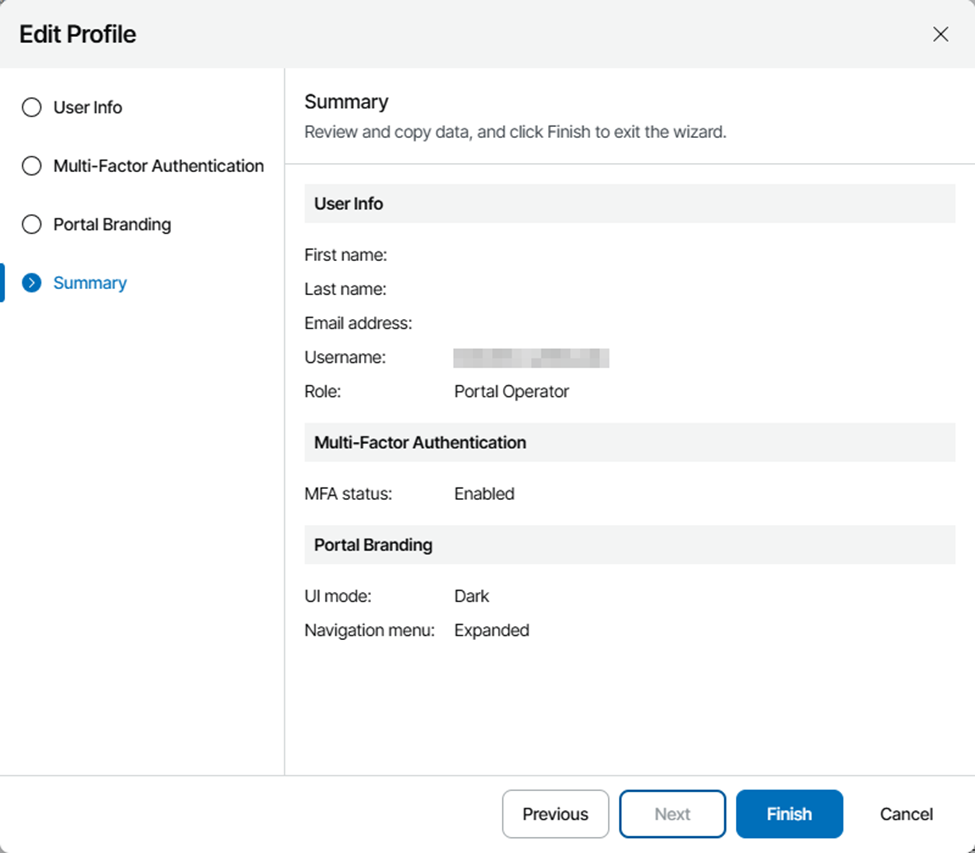
Now to confirm, simply log out, log back in, and you should be able to log in with your “new” account with a valid MFA enrollment. Future goals will be to enable SAML SSO with Microsoft 365 rather than using Active Directory, but this will get by for today.